If you have saved a favorite and would like to insert it in the drawing area, follow these steps:
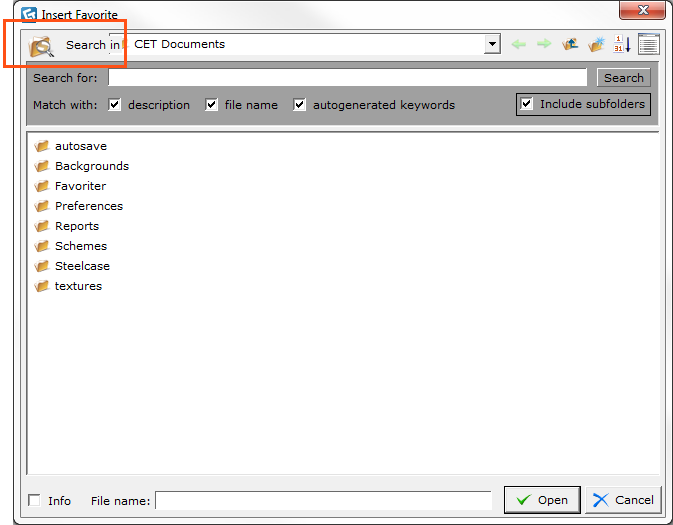
Right-click anywhere in the drawing area. In the popup menu that appears, click Insert Favorite. The Insert Favorite dialog box opens (see Figure 1).
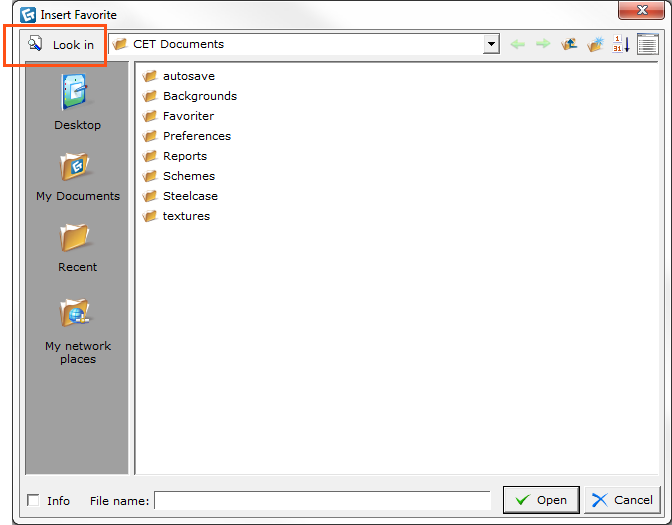
Locate your favorite by searching (see Figure 1) or by browsing (see figure 2). You toggle between the two alternative views by clicking the button in the top left corner of the dialog box (see Figure 1 and 2).
Select your favorite and click Open. Your favorite appears at the mouse pointer.
Click it in place in the drawing area.
|
|
Figure 1 |
Figure 2 |
There are several options how to search for a favorite. The following options are available:
Search in: Use the drop down menu to locate the favorite.
Search for: Enter one or several keywords in the Search for input field and click the Search button. You can define the search by check or uncheck the check boxes:
- Description: Matches the words in the Search for field to the description of the favorite (the description that was entered when the favorite was saved).
- File name: Matches the words in the Search for field to the name of the favorite (see example below).
- Autogenerated keywords: Matches the words in the Search for field to keywords autogenerated by CET Designer, e.g. a word in a tool tip.
File name: Enter the file name or the file address in the File name input field.
Example: You do not remember the exact file name but you think the words chair and table is a part of the file name. Follow the steps below:
The search result will contain all files with both the words chair and table in the file name. If no file name consist of both the words, the search result will contain all files which file name contains the word chair and all files which file name contains the word table. |
You have several options how to browse for a favorite:
Look in: Use the drop down menu to locate the favorite.
Desktop: Use this option if you know that the favorite is saved on you desktop.
My Documents: Click this option if the favorite is saved in My Documents.
Recent: You can click the Recent button if you have used the favorite recently.
My network places: A shortcut to Windows network places.
File name: Enter the file name or the file address in the File name input field.