
To show which component is selected in the 2D and the 3D view, you can choose to frame it in purple.
Follow these steps:
On the File menu, click Control Panel, or click  in the top-right corner of the program window.
Click the Views tab and select the Display a frame around the selection in the 2D view and/or Display a frame around the selection in the 3D view check box.
When you click a component in the drawing area it gets framed in the 2D view (see Figure 1) and the 3D view (see Figure 2).
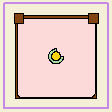
Figure 1
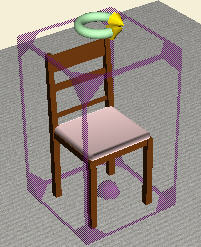
Figure 2