
The Revision Cloud tool is used for marking areas in a drawing that has been revised. The marked area will then appear on the printout. The Revision cloud tool is available for the regular 2D and 3D views as well as the Paper view, where it is found on the Drawing (paper) tab.
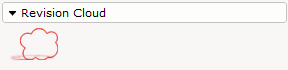
Figure 1
To draw a revision cloud, follow these steps:
Select the Revision Cloud tool from the Tools component tab (see Figure 1). A red arc-shaped item is attached to the mouse pointer.
Click once to position the arc that constitutes the first part of your revision cloud in the drawing area of the 2D view.
Move the mouse pointer in the desired direction until the first arc has the desired length and click.
Repeat this procedure to draw the rest of the arcs that make up the cloud.
Join the last arc with the first one to close the revision cloud and click.
In the input box that appears, set the desired properties.
Note:
|