
To draw two-dimensional circles in CET Designer, go to 2D Circles on the Tools component tab (see Figure 1) or to Circles on the Drawing (paper) component tab in the paper view. Read more below on how to use the different circle types.
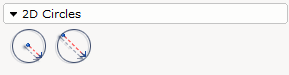
If you want to position a circle with a certain radius, follow these steps:
Click the Circle by radius component on the component tab once to select it.
Move the mouse pointer, now with the circle attached to it, to the drawing area.
Click once and stretch the circle to the desired radius OR click once and enter the desired radius in the input box that appears.
If you want to position a circle with a certain diameter, follow these steps:
Click the Circle by diameter component on the component tab once to select it.
Move the mouse pointer, now with the circle attached to it, to the drawing area.
Click once and stretch the circle to the desired diameter OR click once and enter the desired diameter in the input box that appears.