Example:
You have drawn
two intersecting walls. A section of wall that sticks out is unnecessary
and needs to be trimmed. There are two ways of doing this. Both
are described below.
A. Trim one or more walls in a single step
Follow these steps:
Select
the Trim lines tool,
under Tools on the
Wall Drawing component
tab. Move
the mouse pointer with the tool to the section of the wall
you want to trim; hold the mouse button down and cross over
the wall. A red line is shown crossing the wall at the same
time as a dashed red line marks the removed section (see Figure
2). Release
the mouse button. The wall disappears (see Figure 3).
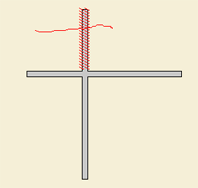 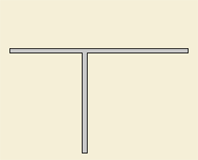
Figure
2 Figure
3
B. Trim one wall at a time
Follow these steps:
Select
the Trim lines tool,
under Tools on the
Wall Drawing component
tab. Move
the mouse pointer to the end you want to trim and click the
tool into place. An input box and a dashed red line are shown. Move
the mouse pointer along the wall to be removed (without holding
the mouse button down) to mark the section to be trimmed.
When
you come to an adjoining section of wall and the word Intersection appears (Figure
4), click. The wall disappears (Figure 5).
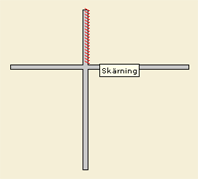
Figure 4 Figure
5 |