
The Edit Graphics Extension is downloaded free of charge from our website. To access the Extensions page, you just click the Extensions button in the program window:

After downloading and installing, click one of the Edit Graphics component tabs to access the Extension. There are two Edit Graphics component tabs; the first one is for editing whole components while the second is for editing parts of components, or meshes as they are called in CET Designer.
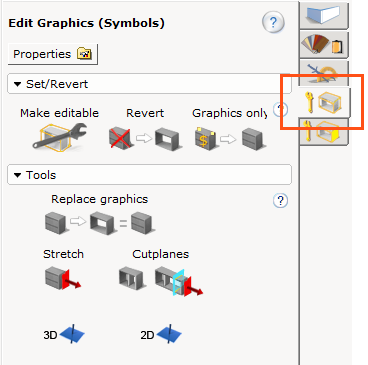 |
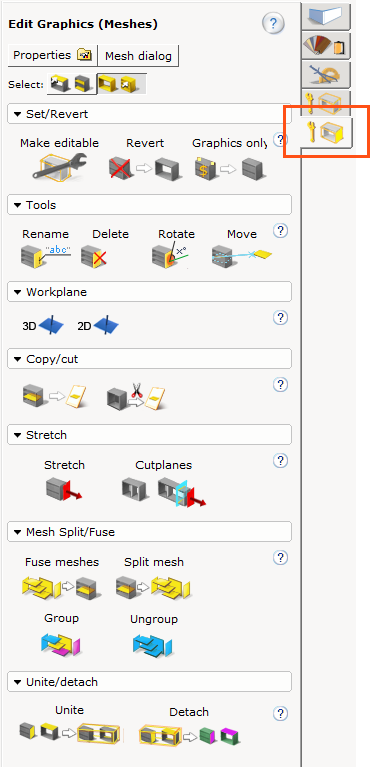 |
The Edit Graphics (Symbols) component tab. |
The Edit Graphics (Meshes) component tab. |
The Edit Graphics Extension can be used for customizations such as:
dimensional changes, for example stretching a table top.
replacing the graphics of objects, for example applying the
graphics from a Google SketchUp object onto a CET Designer component.
working with meshes, for example using the pull handles from
a pedestal on a different cabinet.
A term that is frequently used is mesh, which, in short, is a graphical element (for advanced users; this is a group of polygons). Meshes vary in size; an entire table can make up one mesh, while only a table leg makes up another mesh. In Edit Graphics, some operations can be performed on whole components while other operations are performed on mesh level.
As with CET Designer in general, you can reduce your time and effort by saving edited components as favorites and later insert them in your drawings.
To save a component as a favorite, follow these steps:
Right-click the relevant component in the drawing area and select Save as favorite from the menu. The dialog box Save Favorite opens.
Type in a file name in the empty field at the bottom of the dialog box and then click the Save button.
To insert a saved favorite, follow these steps:
Right-click in the drawing area and select Insert favorite from the menu. The dialog box Insert Favorite opens.
Browse to find the favorite.
Click the favorite to select it.
Click the Open button. The favorite is now attached to the mouse pointer.
Move the mouse pointer to the drawing area.
Click once to place the favorite in the drawing area.