
When you have transferred your drawing to the paper view you have the possibility to make settings for the copied drawing. The settings depend on whether you have transferred a 2D or a 3D drawing.
When you have transferred 2D drawings into the paper view it is possible to make settings for each individual drawing. Click the current drawing in the paper view, a green input box appears (see figure 1).
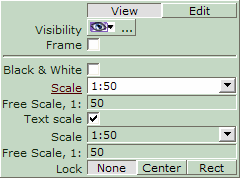
Figure 1
You now have the following options:
View: Select the View option if you wish to lock the image in the viewport.
Edit: Select the Edit option if you wish to be able to zoom and pan the image within the viewport. Editable viewports are surrounded by a grey frame.
Visibility: Click the icon to view the Visibility settings dialog where you can make settings of what to show on the print-out.
Frame: Select the check box if you wish a frame around your drawing. When the check box is selected it is possible to make settings for the frame's appearance.
Black & White: Select the check box if you wish to show the drawing in black and white.
Scale: Select one of the pre-defined scale options in the drop down menu that you wish to display the viewport in.
Free scale, 1: If you would like a different scale than the ones specified in the above drop down menu, enter it in this input field.
Text scale: Select the check box to set the size of text included in the image.
Scale: Select one of the pre-defined scale options in the drop down menu that you wish to display the text in.
Free scale, 1: If you would like a different scale than those specified in the above drop down menu, enter it in this input field.
Lock:
None: You can stretch the 2D viewport in any direction. The image within the viewport will not be affected.
Center: You can stretch the 2D viewport in any direction. The image within the viewport will stay in the center of the viewport.
Rect: The 2D viewport will keep its proportions when stretching it. The image within the viewport will correspond to the size of the viewport and its original position within the viewport.
When you have transferred 3D drawings into the paper view it is possible to make settings for each individual drawing. Click the current drawing in the paper view, a green input box appears (see figure 2).
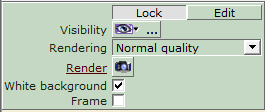
Figure 2
You now have the following options:
View: Select the View option if you wish to lock the image in the viewport.
Edit: Select the Edit option if you wish to be able to zoom and pan the image within the viewport. Editable viewports are surrounded by a grey frame.
Visibility: Click the icon to open the Visibility settings dialog where you can make settings of what to show on the print-out.
Rendering: Select the rendering quality. Note, this will only affect the rendering quality while rendering in the paper view. The quality of the rendering in the print out is set in the Resolution drop down menu in the toolbar or in the Page Setup dialog.
Render: Click the icon to open the Render dialog where you can make different settings for rendering.
Frame: Select the check box if you wish a frame around your drawing. When the check box is selected it is possible to make settings for the frame's appearance.
|
Note:
|