|
Example:
You want to join two thin walls that are placed a short distance apart, and double them at the same time (see Figure 2).
Follow these steps:
-
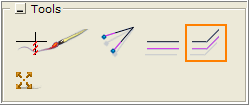
Select the Double and meet line tool, under Tools on the Wall Drawing component tab.
-
Move the tool to any location in the drawing area. In the input box that appears, enter the desired wall thickness.
-
Move the mouse pointer to one of the lines you want to double. Point to the side where you want the doubled line and click.
-
Move the mouse pointer to the next line you want to double. Point to the side where you want the doubled line and click. The pink line fills in the space between the two walls, and finds the correct angle. The walls are now doubled and meet in the corner (Figure 3).
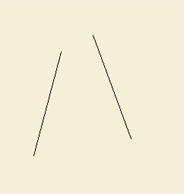 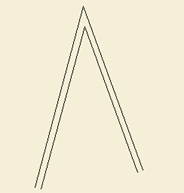
Figure 2 Figure 3
|